

Crucial macOS Permissions (Quick Actions vs. Automator Applications):
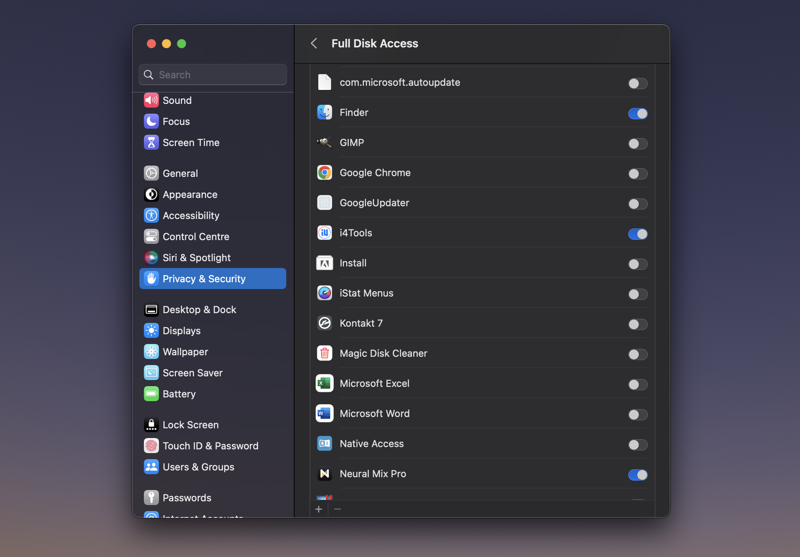
Full Disk Access for Finder (Quick Actions): Quick Actions that use "Run Shell Script" almost always require Full Disk Access for Finder. This is found in System Settings > Privacy & Security > Full Disk Access. This is the most common cause of "Operation not permitted" errors. Granting this permission allows the Quick Action to access files system-wide.
Automator Applications: those using AppleScript and Bash scripts, only require Full Disk Access for its Applet when launching the app at first time. This difference is a key reason why a script might work in an Automator Application but fail as a Quick Action.
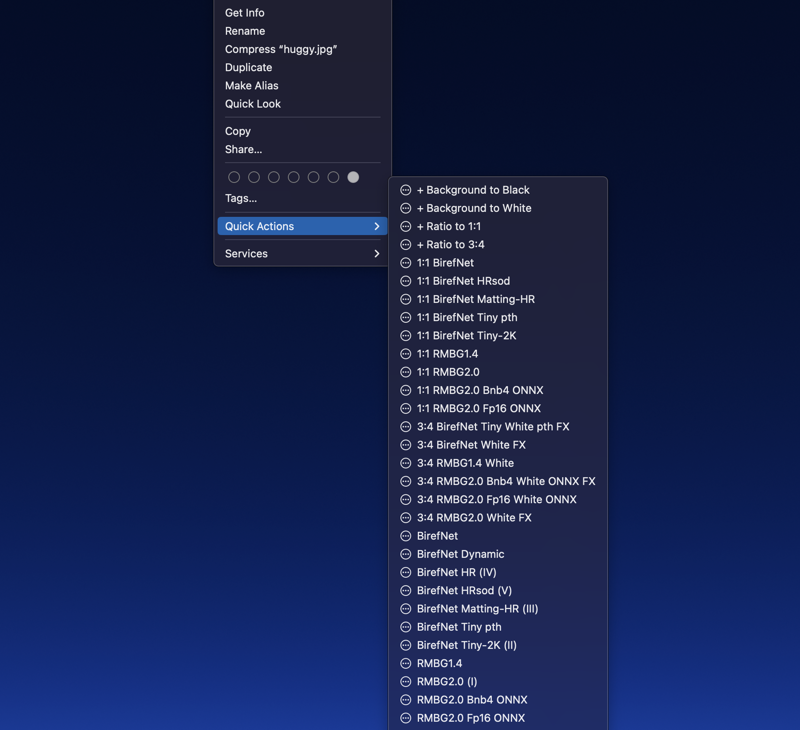
Goal: Create a macOS Quick Action (single Bash script) to: resize images (3:4 aspect ratio), remove backgrounds (RMBG-1.4 model), and add a white background. This replaced a more complex AppleScript/Bash setup.
Issues and Solutions:
Incorrect Aspect Ratio Logic: The original if/else for resizing was flawed.
Solution: Used if/elif/else for correct wider/taller/exact ratio handling.
Slow Performance & Redundant Files: Unnecessary file copying and a cleanup bug caused the background removal process to run twice.
Solution: Resized directly to the output directory; restructured cleanup to run only once after successful final image creation.
Key Lessons Learned:
Minimize File I/O: Avoid copying files. Write outputs directly to their final location.
Precise Conditional Logic: Use if/elif/else structures carefully, especially with bc for floating-point comparisons.
Centralized Cleanup: Group rm commands at the end, conditional on final output success.
Detailed Logging: Essential for debugging. Use a log_messagefunction.
Migrating from AppleScript/Bash to Single-Script Quick Action:
Permissions: Quick Actions have stricter permissions. Full Disk Access for Finder is usually required. (See above).
Environment: Explicitly set environment variables (e.g., PATH) within the script.
Error Handling: Build robust error handling and logging directly into the Bash script.
Argument Passing: Use "$@" for multiple file inputs.
Testing: Thoroughly test from Finder (right-click > Quick Actions), not just the Terminal, as behavior can differ due to permissions.