Update Nov 2025
An Updated UI + All 40 Samplers from ComfyUI
Download: guide_ComfyUI_samplers_v2.zip
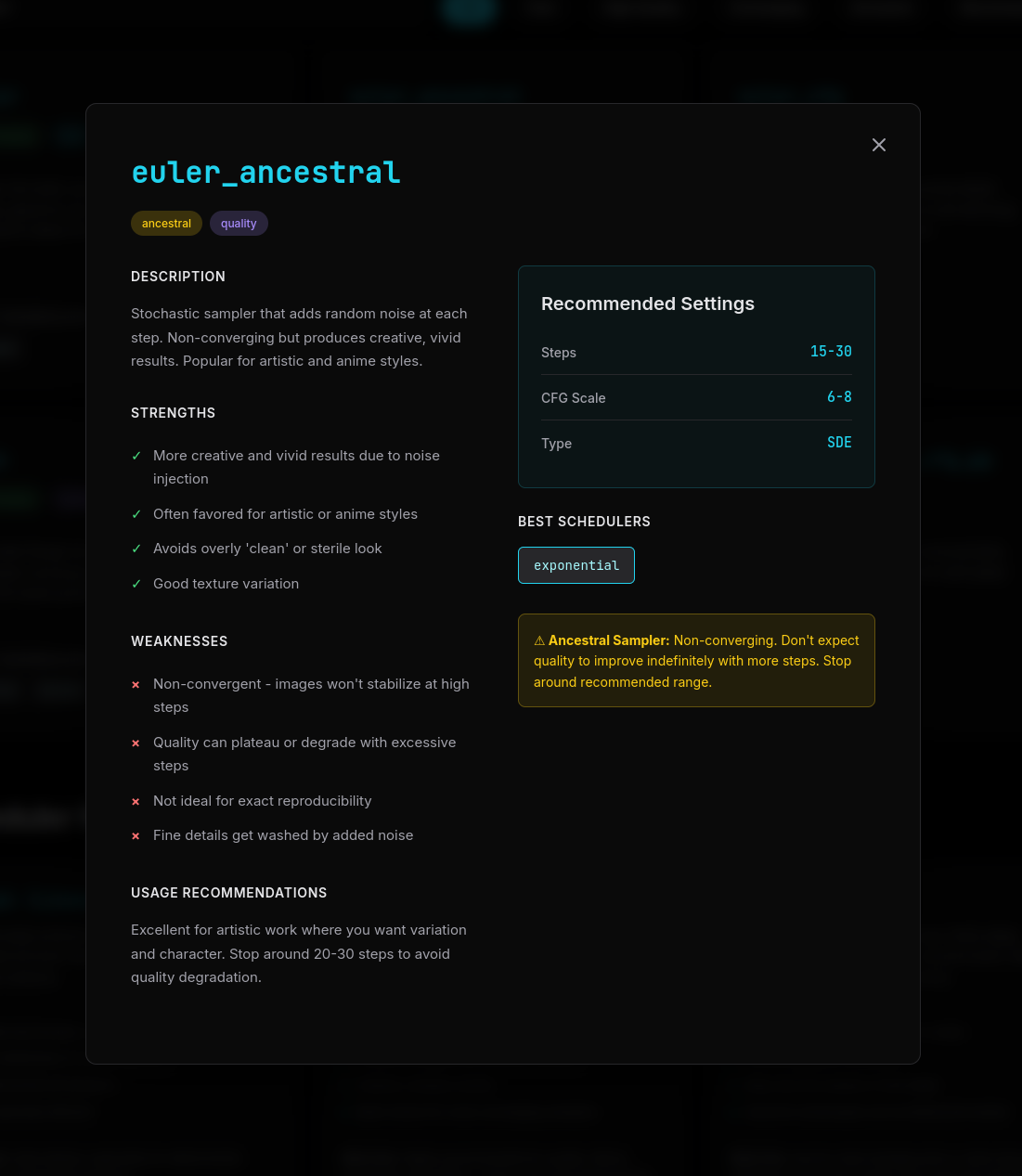
Every sampler entry includes:
Name & Display Name
Description - How it works
Type - ODE, SDE, or Special
Tags - Converging, Ancestral, Fast, Quality, Recommended
Best Schedulers - Compatible scheduler recommendations
Recommended Steps - Optimal step range
Recommended CFG - CFG scale range
Strengths - What it excels at (3-5 points)
Weaknesses - Limitations (2-4 points)
Usage Tips - When and how to use it
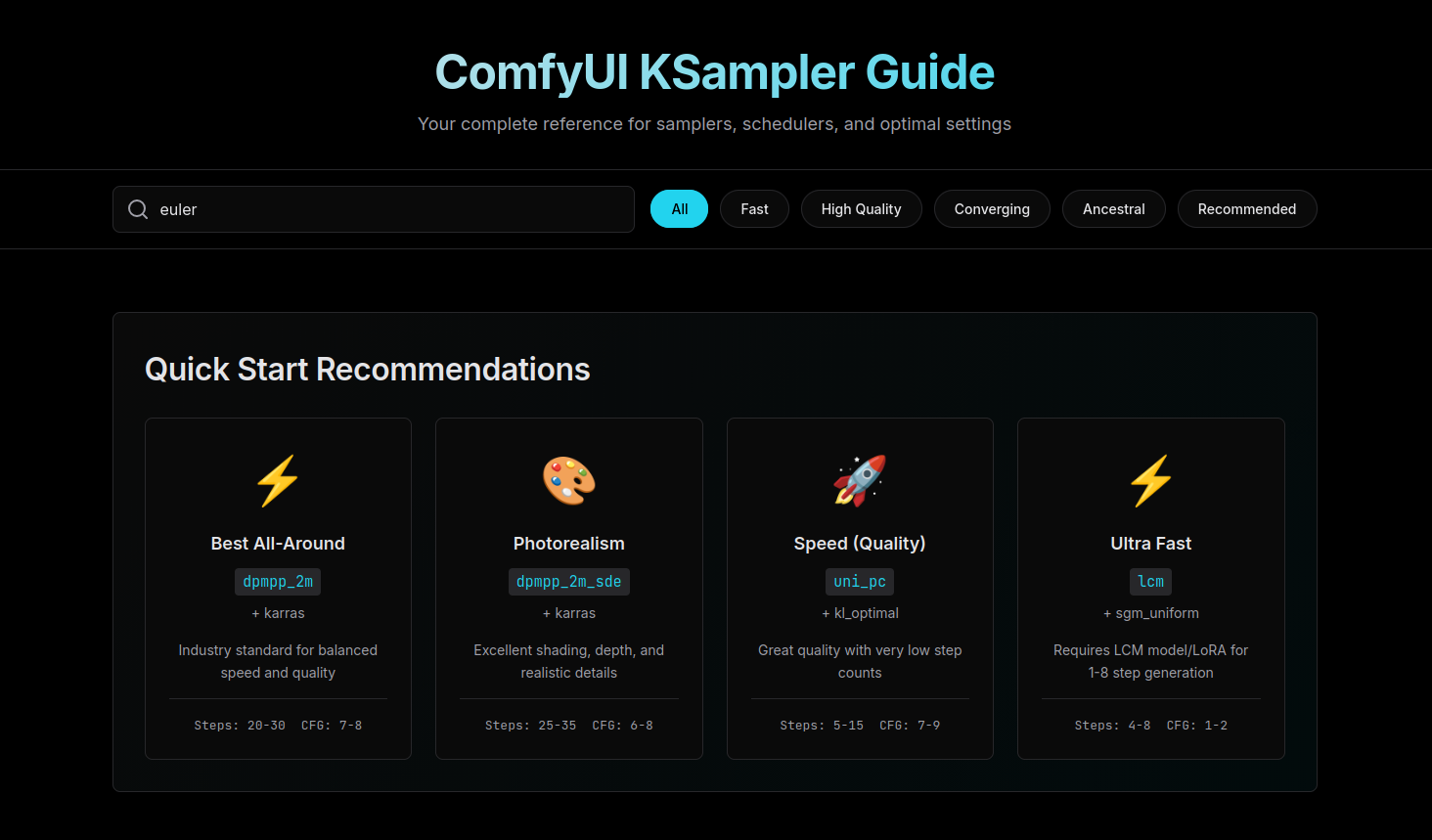
How to Use
Open
index.htmlin your web browserBrowse the "Quick Start Recommendations" for common use cases
Scroll down to see all 40 samplers in the grid
Use search or filters to find specific samplers
Click any sampler for detailed information
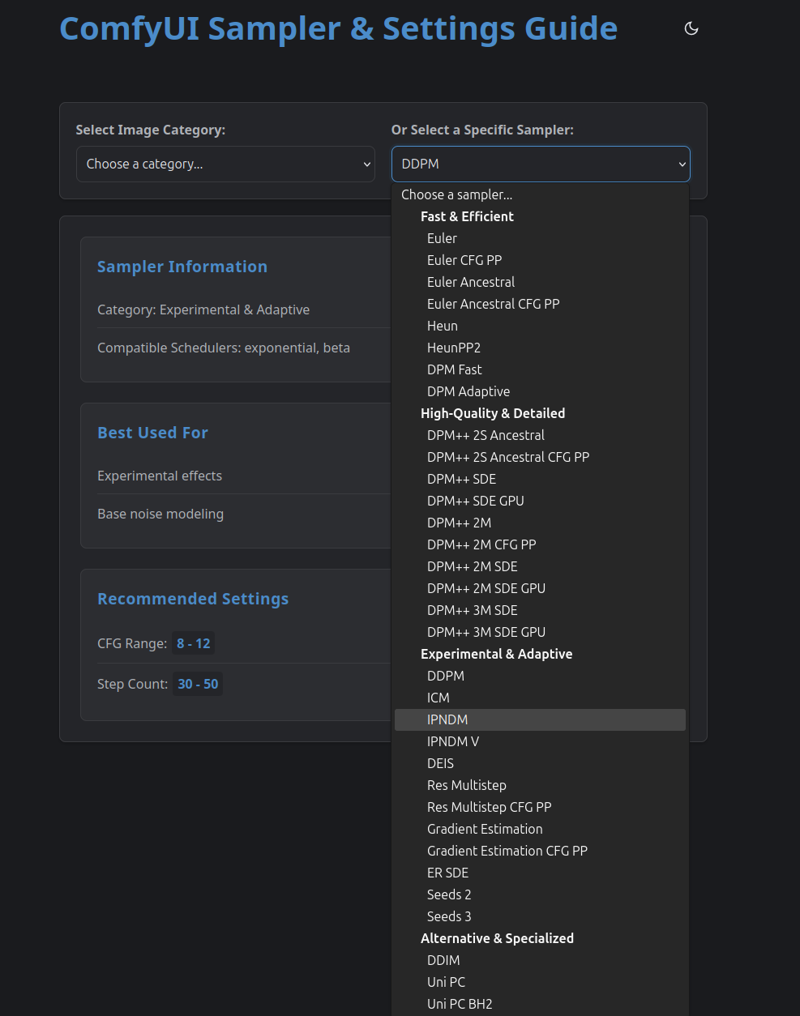
Version v1
Download: guide_samplers.zip
This tool is an interactive web-based (HTML-JS-CSS) guide designed to help users of ComfyUI and similar image generation tools select optimal settings for different samplers and categories.
I used both Google Gemini and Grok to verify the settings. In case you're interested in reading the results, you can download the PDF file, which is based on Grok Deepsearch
Grok:
Key Points
Research suggests the settings in your JavaScript file for ComfyUI and other image generation tools are accurate and suitable for different styles like Anime, Line Art, Abstract, PhotoRealistic, and Preview.
The evidence leans toward the recommended samplers, schedulers, CFG scales, and steps aligning with community practices and typical Stable Diffusion settings.
There may be some variation in preferences, as style-specific recommendations can depend on user experience and model choice, but the settings are generally reliable.
How to Use
Download the Zip file.
Uzip and open the HTML file in a web browser.
Select a category or sampler from the dropdowns to view recommendations.
Apply the suggested settings in your image generation tool for optimal results.