


APP LINK: Booru Prompt Gallery - By Mexes
CHANGELOG: Web App: Booru Prompt Gallery V8.2 | Civitai
TL;DR: Web tool to quickly get clean prompts from Danbooru, Gelbooru, e621, and Aibooru. It removes irrelevant tags, makes adding and managing multiple tags easier, categorizes tags (Appearance, Clothing, Pose, Background), merges redundant tags, and much more! The prompts are mostly designed for Illustrious and Pony; there are plans to try to implement a natural language system, but it is not implemented yet.


Hello! About 4 or 5 months ago, I launched this web app to the public. Since then, it has advanced quite a bit, adding more conveniences, APIs, and useful tools for those who generate AI Art. Because of this, I've decided to remake the article and publish it again to organize everything better and to explain all the new features that might be a bit tricky to understand.
What is this?
Booru Prompt Gallery, as its name suggests, is a gallery... of prompts. What it does is take posts from different digital art websites (like Danbooru), extract the tags that describe them, clean them up, and sort them to leave them ready for generating images. It is extremely useful for people who train LoRAs or AI Artists on social media.
Why did I make it?
As a LoRA model trainer, the most time-consuming part for me was testing the model and creating varied, high-quality examples for its release. So, looking to speed up that part, I made this page.
Feature Breakdown
From here on down, I will describe "what it does and how to use it" for all the tools in this app. I tried to accompany all of them with an image to make it easier to understand; as a result, the article looks much longer. It's not as much text as it seems, trust me! (well, maybe it is a bit too much text).
Basic Operation
You can filter by specific tags. For example, let's say you want examples of Frieren: simply put "frieren" in the search bar and it will start showing you only examples that contain her. This works for any booru tag. After that, just look for one you like and you can copy it completely. (Note: You won't get the exact image, but you will get all the characteristics seen in the image; this depends on how well tagged it is). If you prefer, you also have the option to copy only certain categories, like clothing, for example.

Teach Panel
Dividing tags into categories couldn't be done by magic, so I designed this interface for people who want to collaborate by categorizing each tag. There is an LLM system running in the background; meaning, suggestions go through an AI to quickly determine if the suggestion is correct or not. If the AI says it's incorrect or isn't sure, it goes to human review (which is me). Thank you very much to everyone who decides to collaborate!

Options and Filters
API Providers: Depending on the provider you choose, you will see specific content. For example, the "e621" API is for furry content. Generally, I recommend always using Danbooru, as the tagging is more suitable for Illustrious.

Search bar: This is where you put what you want to see in the examples. You can enter characters, actions, clothing, etc. Due to API limitations, you can only type 1 or 2 tags, depending on the active options.

Blacklist: Here you will place the tags for which you do not want to see examples.
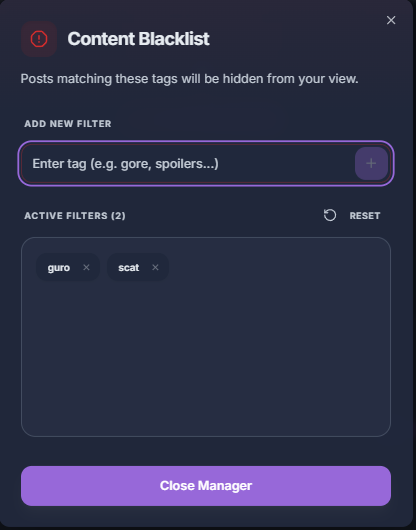
Filter button: This is the typical content shield. Toggle it on or off to see (or hide) that type of content.


Tags to add: An option to add whatever tags you want to all prompts. Useful if you use LoRAs with trigger words or want to apply styles (realistic, photorealistic, sketch, etc.).

Preset saving: Saves the tags to add. Designed for those who manage multiple tag packs.

Tags to remove: Removes tags from the final prompt on all cards. For example, tags like "solo" or "realistic", which are sometimes found in prompts and might not be desired.

Minimum Tag Count: This option ensures that only prompts with more than a certain amount of tags appear. The higher the number, the more detailed prompts you get; I recommend leaving it around 20-30.

Autocomplete: Not sure how the tag appears on Danbooru? There is a simple autocomplete system to help you type them correctly.

Mode Buttons

1. Favorites
By hovering over a card, you can add it to your favorites to always have it handy.
2. Trending
This is a screen to see what is most popular for the day. I made this feature mostly for AI Artists. You can click directly on the cards to send them to the search engine, or right-click to copy the prompt.

3. Merge
By entering Merge mode, you can combine categories between cards. It is very useful when you want to generate certain characters in different poses, clothes, and backgrounds. You can select more than one category on each card and combine as many cards as you want!
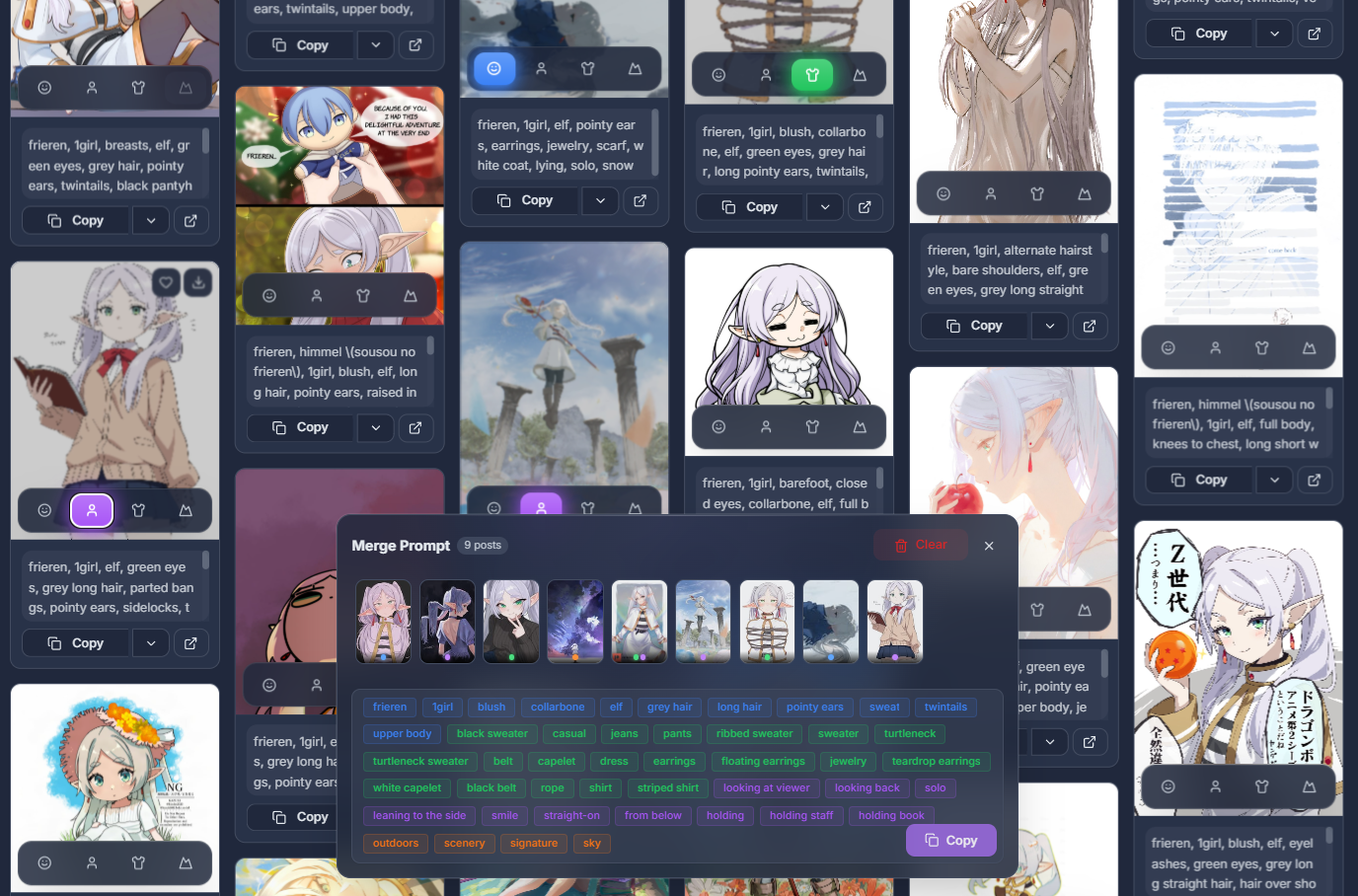
In case there is a tag you aren't interested in, you can simply click it and it will be deleted from the final prompt.
As you scroll down, there is a paper-shaped button that lets you enter this mode without having to scroll all the way back up to the control panel.
4. Feedback
This button isn't a mode per se, but it's there so you can send me reports, requests, and more. I highly appreciate any reports or feature requests; this helps the web app grow much more and become more useful to everyone!

Quick Navigation Controls

Random Button: Ensures you don't always see the latest results, fetching random content instead. Very useful if you're tired of always seeing the same things in the same order.
Refresh Button: Simply reloads the results in case there are new posts, or to restart the random search.
History Button: Opens a side window showing a timeline of all the tags you have copied previously.
Prompt Generation Options

Include Character: Does exactly that: includes character tags in the prompt.
Smart tag combination: If the prompt has, for example, "hair, long hair, white hair", this function combines them into a single tag: "white long hair". It is useful to avoid redundancy and not saturate the tokenizer.
Global Tag Weights: An option designed for users who like to use weights on their tags.
How do tag weights work?
All tags are clickable. Clicking one opens a panel where you can send the tag directly to search, but the interesting part is that you can increase or decrease its weight. If you set it, for example, to 1.5, this weight is applied to the tag and it's ready to copy with the new configuration.


If you enable the Global Tag Weights option, you will unlock a new feature:
If you click the planet icon, you will save that tag as "global".
That weight will automatically be applied to all cards containing said tag.
You can modify and change all the weights you want.


You can also modify the weights directly from the Panel Manager, right next to the option.

Image Download
As the name implies, you can quickly download the images by hovering over the image and pressing the download button. Useful if you need the image for ControlNet or IP-Adapter.

Support the App
Do you like the app and want to support me? You can do so through Buzz or Ko-fi donations.
It also helps a lot if you leave your feedback and suggestions.
That’s it!
Stay hydrated and don’t forget to blink.