
Flux.2 Klein 9B UPDATE - SEE VERSION DETAILS
QWEN IMAGE EDIT v2511 UPDATE - SEE VERSION DETAILS
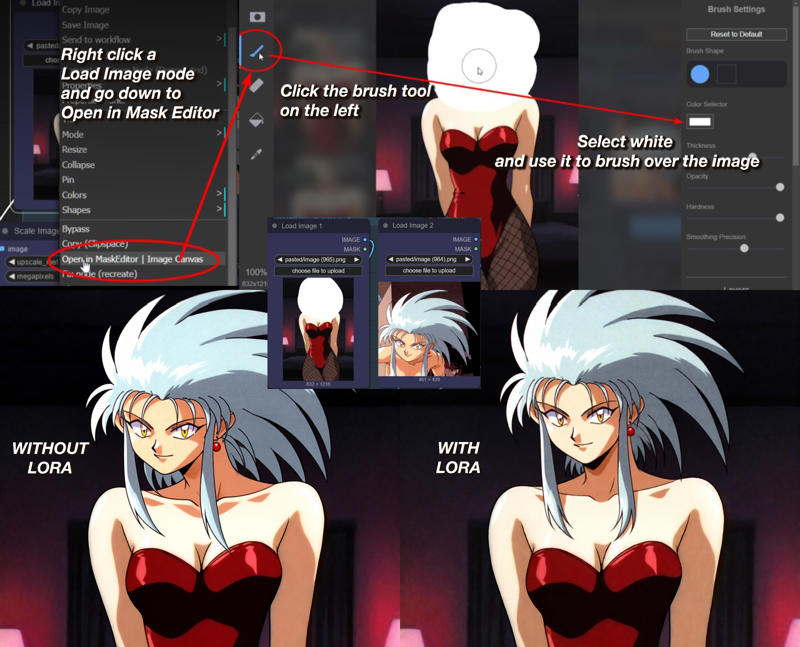
Firstly, this is a concept that Qwen Image Edit (and Flux.2 Klein 9B) can do already, kind of. It's pretty good at Outpainting by using the prompt Remove the white parts. You can even add a context image, but for Qwen Image Edit it's not great/doesn't work the best. Look at the examples for ideas of what it can help with. This was trained exclusively on photos, but seems to work for anime as well. Trained using Runpod with help from the Ostris Tutorial Here.
Suggested prompt for all uses: Remove the white parts, use the image for context.
For Uncropping/Outpainting: The intended purpose is to take a cropped image, expand the canvas size higher than the actual image and fill it with white. Use that as Image 1.
Use the image of the persons head as Image 2. I suggest an image of a head that cropped to a square. Maybe rotate it so it makes sense if it were transferred onto Image 1 directly.
If the image quality or even backgrounds are too different between the two images you may need to add additional context like hair color, location, etc, but less details is better in my experience. If you'd like a more unified quality, I had success using this with this Upscale LoRa. You could try other colors but I have not tested with/trained on anything but white.
For Inpainting: You can use photoshop or the white paint from the built in Comfyui Mask Editor, see the below example: